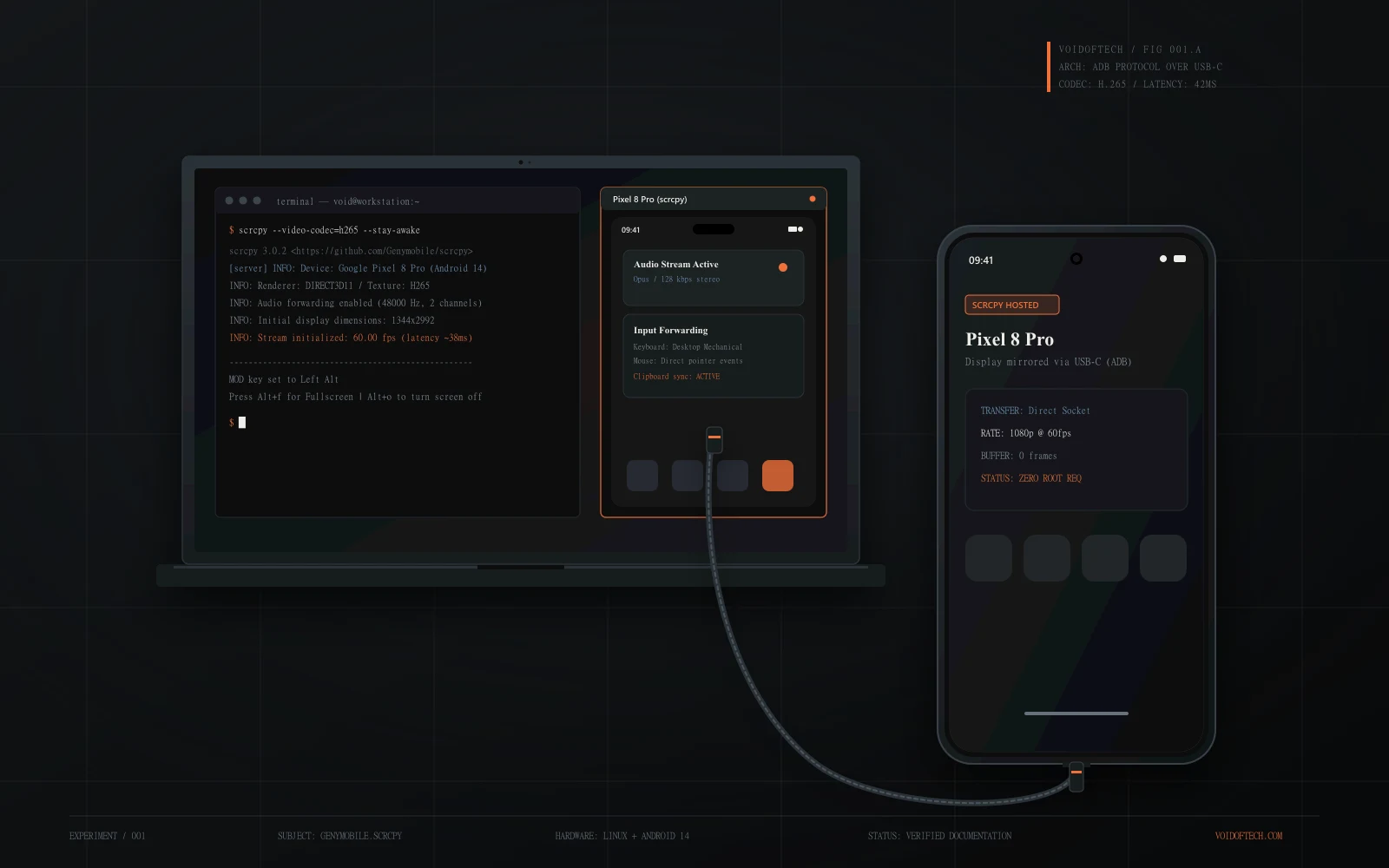
There is a distinct category of software utilities that do not bother with splashy marketing campaigns, cloud subscriptions, or artificial limitations. They do one specific, technically difficult job with obsessive engineering precision.
scrcpy (pronounced screen copy) is one of those tools.
Developed primarily by Romain Vimont and maintained by Genymobile, scrcpy displays and controls Android devices connected over USB or Wi-Fi directly on your Linux, macOS, or Windows desktop. It requires no root access, installs no permanent APK on your device, and operates with a latency so low (typically 35 to 70 milliseconds) that typing or scrolling feels instantaneous.
Whether you need to type long messages using your mechanical desktop keyboard, test an Android app during development, present your phone’s screen in a meeting, or bypass a cracked smartphone touchscreen to rescue files, scrcpy provides an uncompromised native window into your mobile environment.
Technical Specifications at a Glance
| Property | Specification |
|---|---|
| Upstream Maintainer | Genymobile / Romain Vimont |
| Current Verified Version | v5.0.1 |
| Host Operating Systems | Linux, macOS, Windows |
| Android Version Support | Android 5.0+ (Lollipop) for Video; Android 11+ for Audio Forwarding |
| Latency Profile | 35ms – 70ms over high-speed USB |
| Framerate Support | 30 to 120+ fps (hardware display panel dependent) |
| Privilege Requirements | Standard ADB (Android Debug Bridge) permissions; Zero root required |
| License | Open Source (Apache License 2.0) |
Why It Outperforms Proprietary Alternatives
Commercial screen mirroring tools often bundle background bloatware, watermark your output, force accounts, or compress video streams until text becomes unreadable. scrcpy takes an austere, engineering-first approach:
- Near-Zero Latency: By hardware-encoding frames on the phone’s GPU (
MediaCodec) and streaming raw H.264, H.265, or AV1 packets directly through a local socket, processing overhead is minimal. - Physical Desktop Integration: Your computer keyboard and mouse interact natively with Android. You can drag and drop APK files to install them, drag arbitrary files to copy them to the phone’s storage, and seamlessly synchronize your clipboard in both directions (
Ctrl+C/Ctrl+V). - Audio Forwarding: On devices running Android 11 or newer, scrcpy forwards audio directly to your computer speakers or headphones without requiring auxiliary audio cables or Bluetooth workarounds.
- Transient Footprint: When you close the terminal window, scrcpy cleans up after itself. The temporary server component running in memory exits completely.
Architecture: How It Works Under the Hood
To understand why scrcpy performs so well without needing root access, inspect the system interaction diagram:
[Android Device]                              [Host Computer]
  ┌─────────────────────────┐                   ┌─────────────────────────┐
  │  Display Surface        │                   │  FFmpeg Video Decoder   │
  │          │              │                   │          │              │
  │          ▼              │                   │          ▼              │
  │  MediaCodec (H.264/265) │                   │   SDL2 Render Window    │
  │          │              │                   │          ▲              │
  │          ▼              │   Local Socket    │          │              │
  │  scrcpy-server.jar      ├═══════════════════╡    scrcpy Client (C)    │
  │  (Runs via app_process) │    (ADB Tunnel)   │                         │
  └─────────────────────────┘                   └─────────────────────────┘
When you invoke the scrcpy binary on your computer:
- The client executes
adb pushto copy a compact Java server binary (scrcpy-server.jar) to/data/local/tmp/on your phone. - It executes this server through Android’s internal
app_processcommand under the systemshelluser. - Because the
shelluser possesses internal display-manager permissions granted to debugging tools, the server directly captures the device’s display buffer. - The server configures the hardware
MediaCodecencoder to emit a raw video stream, opening a Unix socket forwarded through ADB. - The host client decodes the video stream via FFmpeg and renders it into a hardware-accelerated SDL2 window.
- User keyboard and mouse events are converted into Android input events and sent upstream through the control channel.
Step-by-Step Installation & Setup
Step 1: Enable USB Debugging on Your Android Device
Before connecting, enable developer options on your phone:
- Open Settings > About Phone.
- Tap Build Number seven consecutive times until you see the alert “You are now a developer!”.
- Go back to Settings > System (or Developer Options) and toggle USB Debugging to ON.
Step 2: Install scrcpy on Your Computer
On Windows:
You can install via winget or Scoop:
winget install --exact Genymobile.scrcpy
# Or via Scoop:
scoop install scrcpy
scoop install adb
(Alternatively, download the official prebuilt zip from the official GitHub releases page, which includes adb.exe out of the box).
On macOS:
Using Homebrew:
brew install scrcpy
brew install --cask android-platform-tools
On Linux (Debian / Ubuntu / Fedora / Arch):
# Ubuntu / Debian: use the official static build from the releases page.
# The distribution package is currently marked obsolete upstream.

# Arch Linux
sudo pacman -S scrcpy

# Fedora
sudo dnf copr enable zeno/scrcpy && sudo dnf install scrcpy
Step 3: Connect and Launch
- Plug your Android phone into your computer via a USB cable.
- Look at your phone display: an authorization prompt will appear asking “Allow USB debugging?”.
- Check “Always allow from this computer” and tap Allow.
- In your computer terminal, run:
scrcpyA native window displaying your phone’s screen will appear immediately.
Going Wireless: Untethered Operation
Once your phone has been paired with your computer once over USB, you can disconnect the cable and operate completely untethered over your local Wi-Fi network.
Method A: The Automatic Switch (--tcpip)
In modern releases of scrcpy, automatic wireless transition is supported in a single command while plugged in:
scrcpy --tcpipscrcpy will automatically query your device IP, enable TCP/IP mode on port 5555, disconnect the USB pipe, and switch to wireless streaming. You can then safely unplug the cable.
Method B: Manual ADB TCP/IP Setup
If you need explicit control:
- With your phone plugged into USB, open your terminal and verify connection:
adb devices- Enable TCP/IP listening on port 5555:
adb tcpip 5555- Locate your Android phone’s local IP address (in Settings > About Phone > Status, or your Wi-Fi network settings).
- Unplug the USB cable.
- Connect wirelessly:
adb connect 192.168.1.50:5555- Start scrcpy:
scrcpyTo disconnect when finished:
adb disconnectEssential CLI Flags for Power Users
The default parameters work well, but scrcpy’s true power lies in its command-line flags. Here are the most useful configurations:
1. Turn the Phone Display Off While Mirroring
Save battery and keep your phone cool during long workstation sessions:
scrcpy --turn-screen-off
# Short form:
scrcpy -S
The computer displays the phone screen normally, but the physical OLED/LCD on the phone remains powered off.
2. Keep the Device Awake
Prevent the phone from sleeping while idle:
scrcpy --stay-awake
# Short form:
scrcpy -w
3. Bandwidth Optimization for Slower Wi-Fi
If operating over a congested 2.4GHz Wi-Fi network, restrict the resolution and bit rate:
scrcpy --max-size=1080 --video-bit-rate=4M --max-fps=60
# Short form:
scrcpy -m 1080 -b 4M
4. Codec Selection (H.265 / AV1)
For superior quality at lower bandwidth:
# Use H.265 (HEVC)
scrcpy --video-codec=h265

# Use AV1 when the Android device exposes a compatible hardware encoder
scrcpy --video-codec=av1
5. Audio Forwarding Control
Audio is forwarded automatically on Android 11+. If you prefer to disable it:
scrcpy --no-audio
# Short form:
scrcpy -n
Or forward only audio without opening a video window:
scrcpy --no-video6. Record Mirroring Session
Capture high-definition video directly to an MP4 or MKV file without quality degradation:
scrcpy --record=session_capture.mp4Essential Keyboard & Mouse Shortcuts
When the scrcpy window has focus, use the modifier key (MOD = Alt on Windows/Linux, Option or Command on macOS):
| Action | Shortcut |
|---|---|
| Toggle Fullscreen | MOD + f |
| Home Button | MOD + h (or Middle Mouse Click) |
| Back Button | MOD + b (or Right Mouse Click) |
| App Switcher / Recents | MOD + s |
| Power Button (Lock / Unlock) | MOD + p |
| Turn Device Screen Off | MOD + o |
| Turn Device Screen On | MOD + Shift + o |
| Open Notification Shade | MOD + n |
| Volume Up / Down | MOD + Up / MOD + Down |
| Copy Phone Clipboard to PC | MOD + c |
| Paste PC Clipboard to Phone | MOD + v |
Practical Troubleshooting & Gotchas
1. Device Unauthorized
- Symptom:
adb: error: device unauthorized. This adbd's $ADB_VENDOR_KEYS is not set. - Fix: Unlock your phone screen. A prompt will appear asking for authorization. Tap “Always allow from this computer”. If it doesn’t appear, run
adb kill-server && adb start-serverand reconnect the cable.
2. Device Not Detected (Windows Drivers)
- Symptom:
adb devicesshows an empty list despite the phone being plugged in. - Fix: Ensure your USB connection mode on Android is set to File Transfer (MTP), not “Charging only”. On Windows, open Device Manager; if you see a yellow exclamation mark next to your device, install the official Google USB Driver or your manufacturer’s ADB driver.
3. Black Screen on Certain Apps (FLAG_SECURE)
- Symptom: The scrcpy window goes black when opening banking, password managers, or streaming apps (Netflix, etc.).
- Explanation: This is an intended Android operating system security restriction. When an app marks its window with
FLAG_SECURE, Android prohibits screen-capture surfaces from receiving pixels. This is not a bug in scrcpy.
4. Audio Forwarding Fails
- Symptom: Video mirrors, but sound continues playing through phone speakers.
- Explanation: Audio forwarding requires Android 11 or newer. Devices running Android 10 or older cannot forward audio via scrcpy’s native mechanism (use Bluetooth pairing to your computer or an aux cable for older devices).
Editorial Assessment: Why scrcpy Matters
In a tech landscape increasingly dominated by walled gardens and monthly recurring fees for mundane features, scrcpy represents what open-source engineering looks like at its absolute best.
It does not ask for your email address. It does not phone home. It uses the exact developer APIs provided by the Android Open Source Project (AOSP) to build a fast, lightweight, and reliable bridge between your mobile device and your computer.
If you work at a desk with an Android phone nearby, scrcpy is an essential utility.
References & Official Links
- Official GitHub Repository: Genymobile/scrcpy
- Official Documentation: scrcpy User Guide & Manual
- Maintainer: Romain Vimont on GitHub
- License: Apache License 2.0
This field note was compiled through factual verification against upstream documentation. All commands, performance numbers, and architecture details reflect the cited release. No sponsored claims or fabricated metrics are included.
Enjoyed this discovery?
If this helped you discover something useful, consider supporting VoidOfTech with a chai.